Flow step reference
Every step type you can place on the flow canvas: what each one is for, what it connects to, what each field in its side panel does, and what it compiles to. See Studio builder, complete guide for how the canvas itself works (starting an app, connections, the + button).
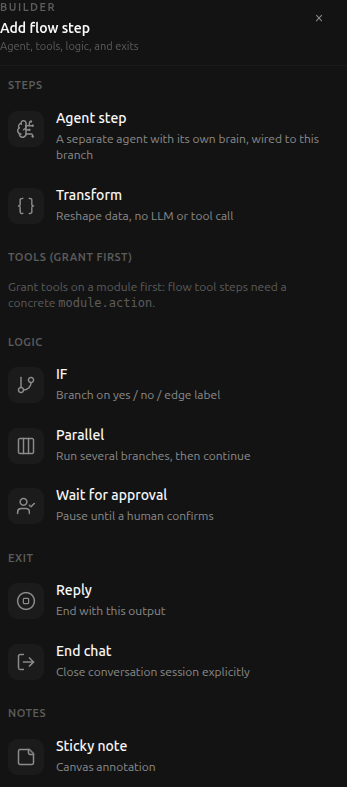
This is the palette you get when you click + on a step. It lists every step kind you can place, grouped by what it does:
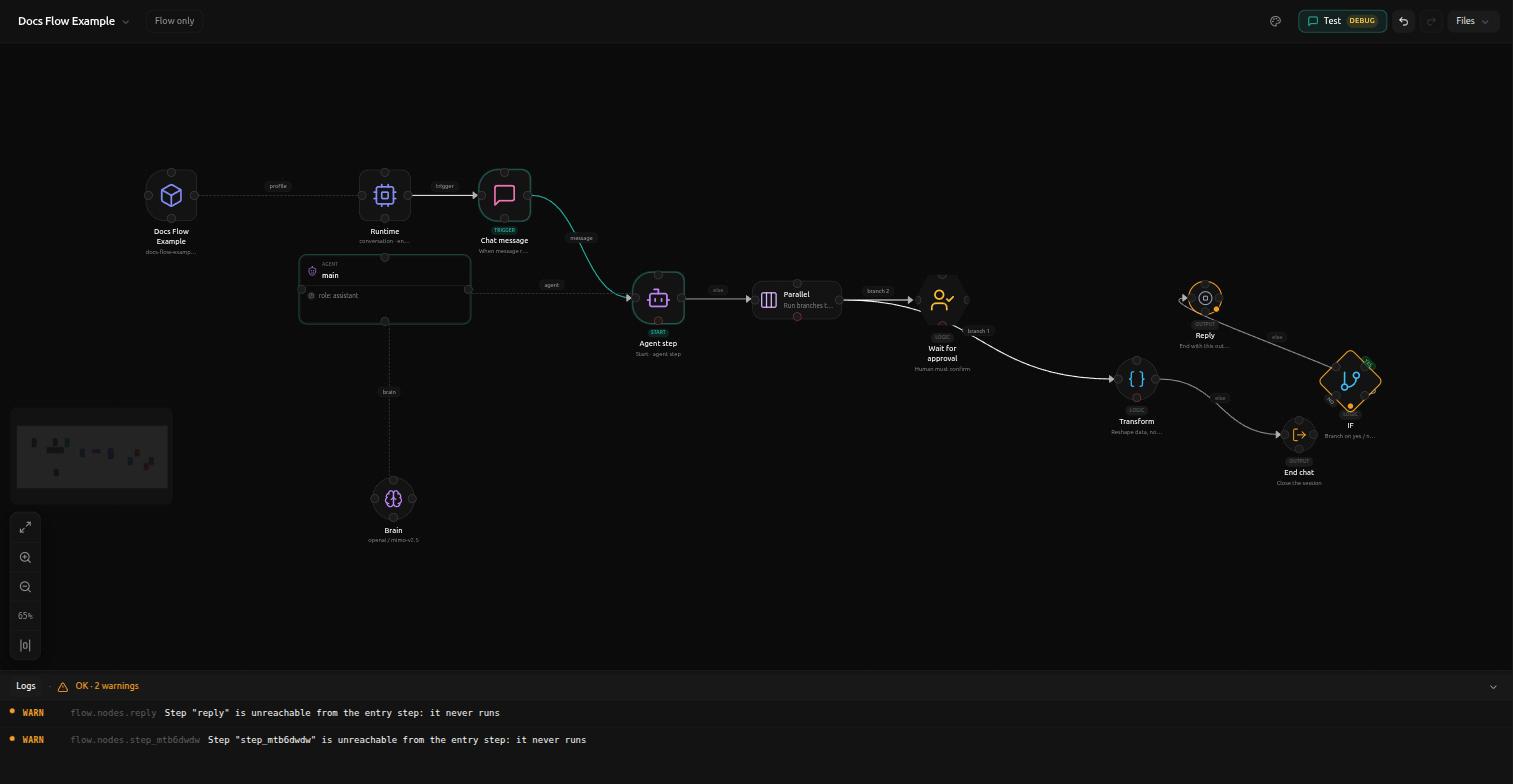
The shape of a step on the canvas tells you something about it before you even read its label. Rounded cards run something (a model, a tool, a transform); the diamond branches; the pill shapes end the graph.
The starting step

A flow doesn't have a separate "entry" step you place by hand. Whichever step is actually first gets a small Start badge instead, so you can tell at a glance where execution begins without following every arrow back. Any step kind can be the one that starts a flow: an Agent step, a Tool step, even an IF.
When the first step happens to be an Agent step, Studio also gives it a rounded shape distinct from an ordinary Agent step's card, so a scan of the canvas shows where things begin before you read a single label.
Agent step
One call to a language model. Reads the conversation or whatever previous steps produced, and answers using its own system prompt.
Use it wherever the next action depends on understanding free text: classifying a message, judging tone, drafting a reply, deciding between more than a couple of outcomes that a fixed rule could not reliably tell apart. If the outcome is always the same fixed action regardless of what the input says, use a Tool step instead. It is instant and costs nothing per run.
Each Agent step is wired to one specific agent in the app, with its own system prompt and its own brain (model, provider, temperature). Clicking + and choosing this step always creates a brand new agent, entirely separate from any other Agent step already on the canvas. Nothing is shared between them unless you deliberately point two steps at the same agent id in the YAML.
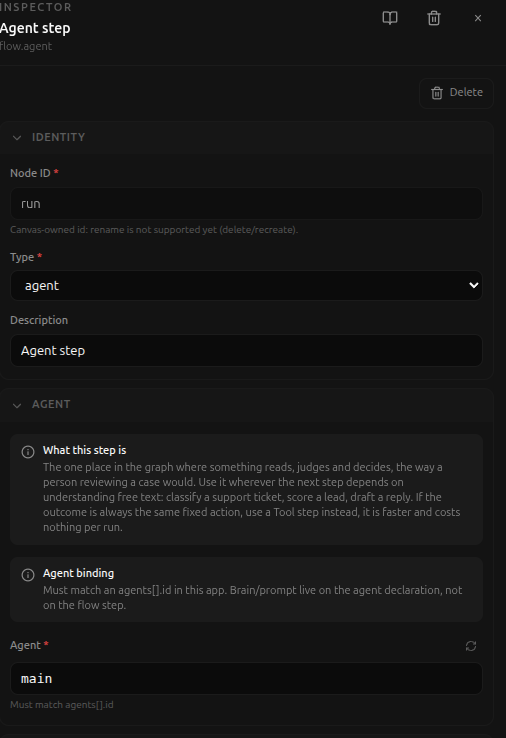
Fields:
-
Agent, which agent in the app this step runs. Set automatically when the step is created; change it from the dropdown to reuse an agent already defined elsewhere in the app instead of the one created for this step.
-
Task, the instruction sent to the agent for this turn. Supports
{{ }}template references, most commonly{{event.payload.message}}for the incoming message, or{{some_step_id.field}}to read one field out of an earlier step's reply (only works if that reply is JSON with a field of that name). For the raw text an Agent or Transform step produced, use{{some_step_id.output}}instead. Left empty, the daemon falls back to the previous step's raw output, or the incoming message if this is the first step.some_step_idis not something you have to remember or invent: open the earlier step's own panel, its Identity section has a Node ID field, read-only but selectable. Copy it from there.
Transform step

Reshapes data that already exists. Pulls a couple of fields out of what an earlier step produced and repackages them the way the next step needs them. No model call, no tool call: it runs instantly and costs nothing.
Reach for this when the value you need is already sitting somewhere upstream and just needs renaming, combining, or reformatting. It is never the right place for an actual decision. If the next step's behavior should depend on judging something, that judgment belongs in an Agent step feeding its result into this one.
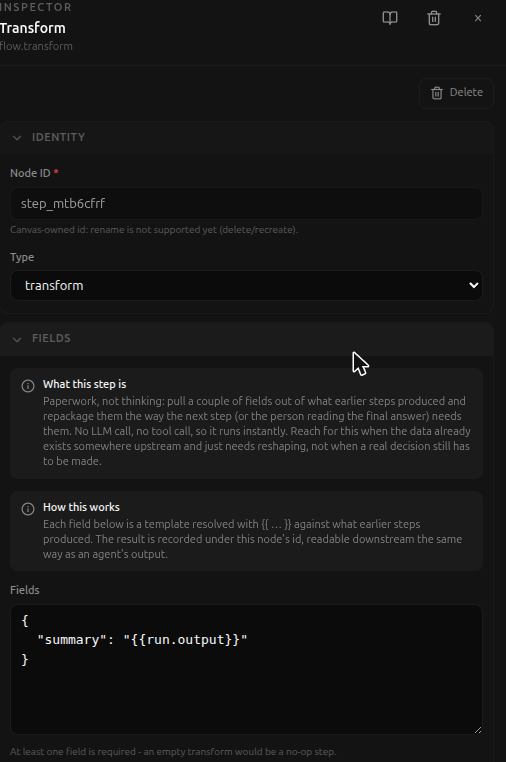
Fields:
- Params, a set of key/value pairs, each value a
{{ }}template. Whatever keys you declare here become the step's own output, addressable downstream the same way any other step's output is:{{this_step_id.key}}. Referencing a key you never declared here is caught at compile time, not discovered later at runtime.
Tool step
A fixed action with no judgment involved: send a message, write a record, fetch a page. Same input always produces the same action. No model call happens here.
If the step needs to decide something first, which channel, what to say, which record to update, that decision belongs in an Agent or Transform step upstream, with this step consuming its result.
Fields depend entirely on which tool is selected; each tool declares its own parameter shape, shown once you pick one from the granted tools list. A tool must already be granted to the app (under Capabilities) before it appears here; the picker never offers a tool the app cannot actually call. This is real, verified Studio behavior: an app with nothing granted shows an empty Tools (grant first) section in the Add flow step palette above, with no tool listed to pick.
A downstream step reads this one's raw text through
{{this_step_id.result}}, not .output - that accessor is for Agent and
Transform steps only. Typing .output on a Tool step's id does not error,
it just resolves to nothing, so the mistake only shows up later as a step
that silently receives an empty value. {{this_step_id.field}} (a bare
field name, no .output or .result) works on any step type and reads
straight out of the reply's JSON, when the reply has that field.
This section doesn't have its own canvas/panel screenshot yet - capturing one needs a tool actually granted to an app first. Coming in a later pass.
IF (decision)

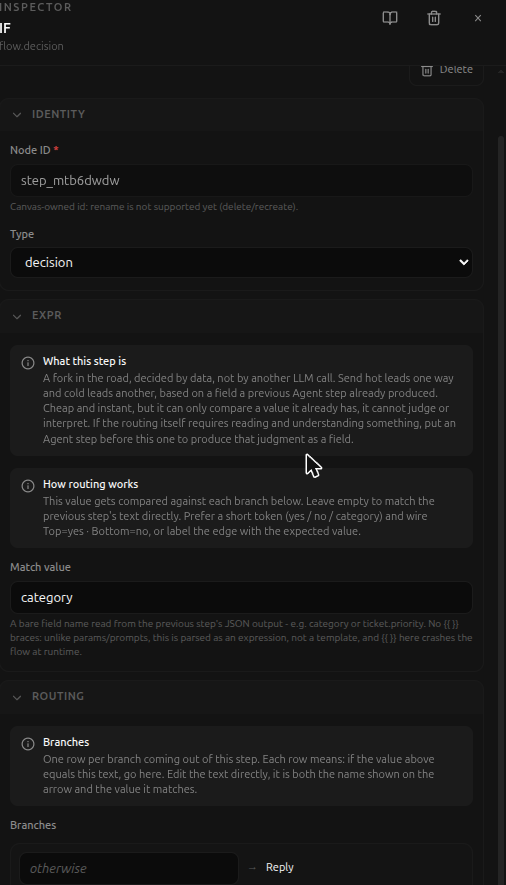
A fork in the road decided by data already on hand, not by a model call. Cheap and instant, but it can only compare a value it already has. It cannot read or interpret anything itself.
Fields:
- Match value, a bare field name read from the previous step's output,
for example
categoryorticket.priority. This is not a template: do not wrap it in{{ }}, it is parsed as a plain expression and{{ }}here breaks the flow at runtime. - Branches, one row per outgoing arrow. Each row's text is the exact value that has to match for that branch to run. Renaming a branch here has the same effect as double-clicking its arrow label on the canvas: both edit the same underlying value.
Every IF needs one branch that catches whatever the compared value does not otherwise match. Press Set as default on the branch meant to be that fallback. Without it, an unexpected value has nowhere to go: the flow stops at that exact point, and the caller receives whatever the previous step's raw output happened to be instead of a real answer. Studio warns you in the panel when no branch is marked as the catch-all, but it won't stop you from saving or testing the app anyway. Nothing crashes, nothing errors, the wrong text is simply what comes back, so it's worth reading that warning rather than dismissing it.
Concrete example: an Agent step upstream is instructed to answer with
{"category": "refund"} or {"category": "other"}. The IF's Match value is
set to category. One branch is renamed from its default name to refund;
the other is marked as the default branch and catches other along with
anything the agent might unexpectedly answer instead.
Parallel

Runs more than one branch at the same time instead of one after another, searching two sources at once, or drafting a reply while separately checking a related record. Only worth it when the branches genuinely do not depend on each other's results. If one branch needs what another produced, they are not parallel, they are sequential, and should be connected one after the other instead.
Each branch's output stays addressable downstream by that branch's own step id, exactly like any other step.
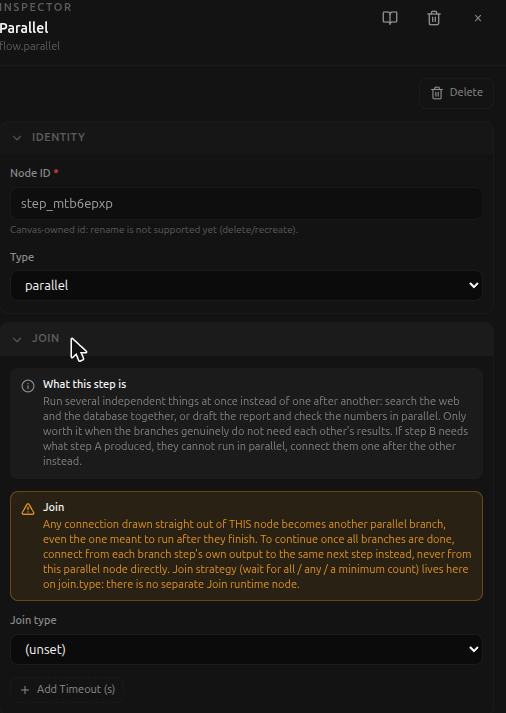
Join: how the branches are waited on
Once the branches are running, something has to decide when the Parallel step itself is done. That's the Join section of the same panel, not a step of its own on the canvas.
- Join type, one of four modes:
allwaits for every branch to finish.anycontinues as soon as one branch succeeds.firsttakes whichever branch finishes first, whether it succeeded or not.countwaits for a minimum number of branches you set yourself. - Join min, only shown when Join type is set to
count: the minimum number of branches that have to finish before the step continues. - Timeout (s), an optional limit, hidden behind an "Add Timeout" button until you turn it on. Past it, the step continues with whatever branches have finished by then.
Wiring the far side matters just as much as the join settings, and it's easy to get backwards: a connection drawn straight out of the Parallel node itself does not mean "continue once everyone's done" — it creates another branch that also runs in parallel with the rest. To converge back onto one path after the branches finish, connect each branch's own last step to the same next step instead, and leave the Parallel node itself with no outgoing connection of its own.
Wait for approval

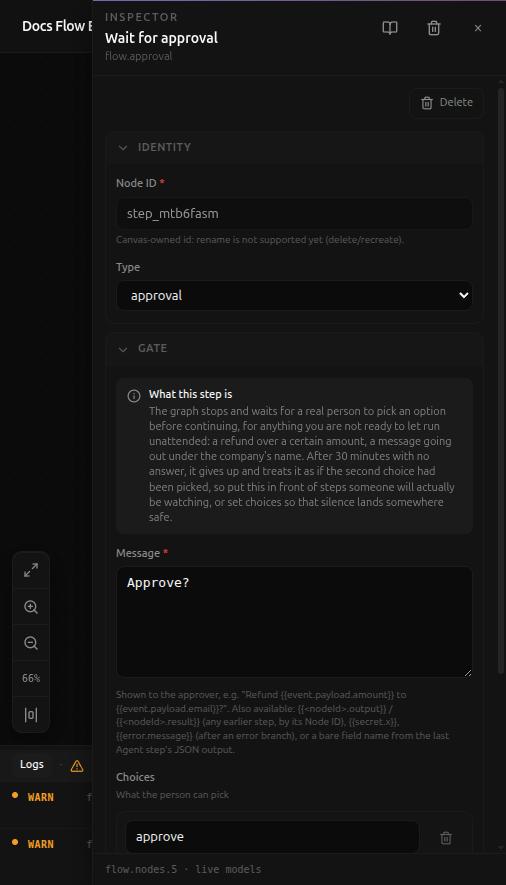
Pauses the graph until a real person picks one of the offered choices. Use it in front of anything that should not run unattended: an irreversible action, a message that goes out under the company's name, a spend over some threshold.
Fields:
- Message, the question shown to the person approving, for example
Refund {{event.payload.amount}} to {{event.payload.email}}?. Also takes{{<nodeId>.output}}/{{<nodeId>.result}}from an earlier step,{{secret.x}},{{error.message}}after an error branch, or a bare field name from the last Agent step's JSON output. - Choices, the list of options they can pick between. Defaults to
approveandreject. - Branches, one row per outgoing arrow, matched against the actual choice a person picked, not free text. Clicking + on this step assigns the next unused declared choice automatically.
There's no field to configure how long the graph waits. If no one answers within 30 minutes, a fixed limit, it gives up and proceeds as though the second declared choice had been picked. Set your choices so that silence lands somewhere safe, or make sure the people meant to see the request actually will.
Reply

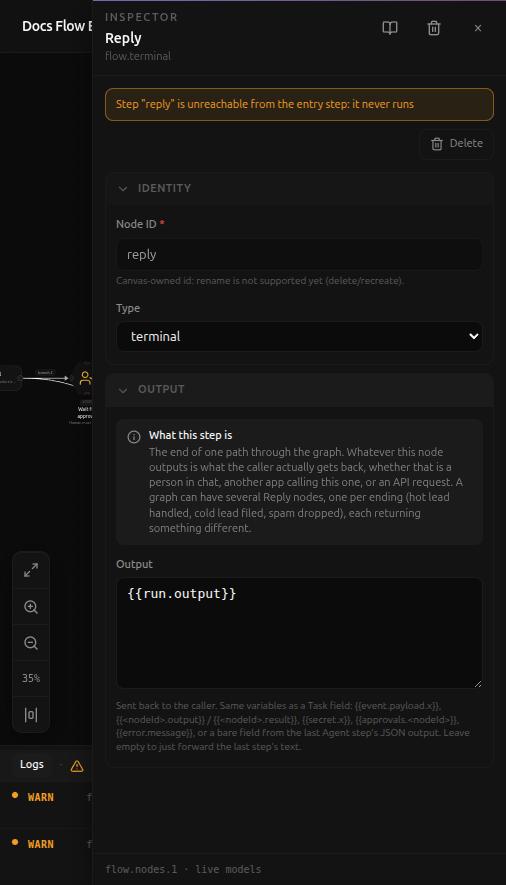
The end of one path through the graph. Whatever this step outputs is what the caller receives: a person in chat, another app that called this one, or an external system hitting the API. A graph can have several Reply steps, one per genuine ending (issue resolved, escalated, out of scope), each returning something different.
Fields:
- Output, the text returned, usually built from
{{ }}references to what earlier steps produced. Left empty, whatever the previous step produced is returned as-is.
End chat

Identical to Reply, but also closes the conversation on the way out, the way a support agent says goodbye and hangs up instead of leaving the line open. Use it for a chat that should genuinely end here. It only makes sense in Conversation mode; a one-shot or background app has no open session to close, so this step is not offered there.
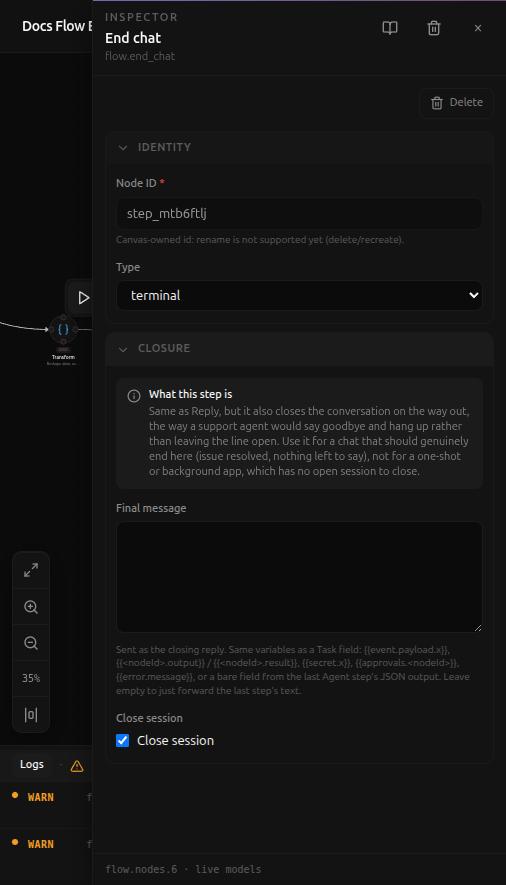
Fields:
- Final message, sent as the closing reply. Same variables as a Reply step's Output field. Left empty, it just forwards the last step's text.
- Close session, on by default. Turn it off to send the final message without actually ending the session, though at that point there's rarely a reason to reach for this step instead of a plain Reply.
A worked example
A support inbox needs to answer a plain question immediately, but route anything that sounds like a complaint to a human.
- Agent step, task set to
{{event.payload.message}}, instructed to reply with exactly{"category": "question"}or{"category": "complaint"}and nothing else. - IF, Match value
category. One branch renamed toquestion, the other renamed tocomplaintand marked as the default, so anything the classifier answers besides the literal wordquestionstill lands somewhere sensible. - From the
questionbranch: a second Agent step that answers the question directly, then a Reply returning its answer. - From the
complaintbranch: a Tool step that files the complaint into a ticket queue, then a Reply confirming it was received.
Nothing here is decided by Studio itself. Every choice (which field the IF
reads, which text each branch matches, which step each arrow points to) is
something you set explicitly, and all of it is visible in the compiled
app.yaml if you open the YAML view at any point while building.